What to Do After Launching a Token: A Solana Checklist
Nine steps for after launching a token on Solana: collect creator, LP and tax fees, unwrap wSOL, close empty accounts, sweep SOL, disclose, revoke.

After launching a token on Solana, the fees it generates do not land in your wallet on their own. Creator fees wait in a launchpad vault, LP fees wait on a concentrated position, and a Token-2022 transfer tax waits inside holders' token accounts. Nothing reaches your balance until someone collects it.
The cleanup after launching a token has an order, and the order does real work. A claim can open a token account or leave wrapped SOL behind. Withheld tax stops an account from closing. Each claim is paid for by the wallet that signs it. Out of sequence, you repeat work or pay a rent deposit again for an account you just closed.
Collect first. Then unwrap, close and sweep. Retire, publish and revoke come last, because each stage clears something the next one would trip over.
The checklist after launching a token, in order
Nine steps in three groups: money outside your wallets, leftovers inside them, and the wallets and token themselves.
- Collect creator fees from launchpad vaults.
- Collect LP fees on concentrated liquidity positions.
- Collect Token-2022 transfer tax, if the token has one.
- Unwrap any wSOL.
- Close empty token accounts to get their rent deposit back.
- Sweep leftover SOL from operational wallets into one wallet.
- Retire single-use wallets and archive their keys.
- Publish which wallets are the team's and what share they hold.
- Revoke mint and freeze authority, if that was the plan.
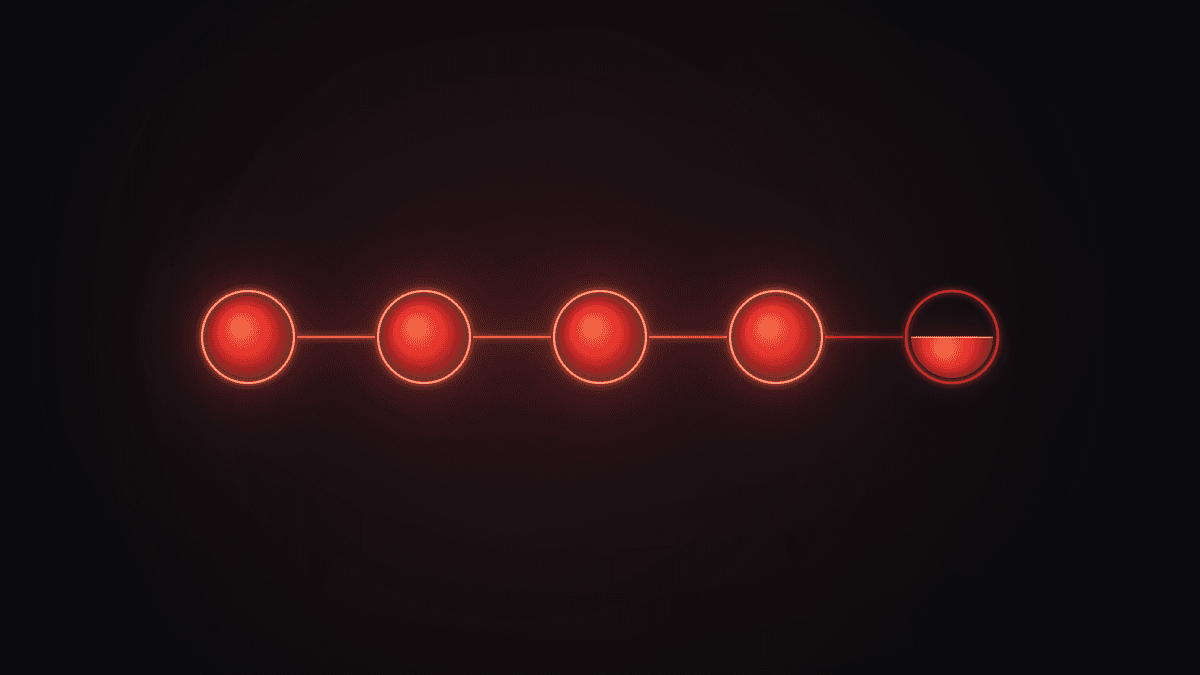
Steps 1 to 3: collect what sits outside your wallets
These three can run in any order among themselves. They come first because they need SOL in the signing wallet, and because a claim can open a token account or leave wSOL, so unwrapping and closing before them means doing it twice.
1. Creator fees in launchpad vaults
Pump.fun keeps bonding-curve creator fees in a vault per creator. After graduation PumpSwap pays into a separate vault, and Raydium LaunchLab keeps its own creator vault before migration. These program accounts never show in your wallet balance, and only the creator wallet's signature can move them. Pump.fun's creator share is tiered by market cap, so no rate appears here.
A Pump.fun launch paired with USDC or another token pays its creator in that token, and the claim opens a token account for it when one is missing. On LaunchLab, if a wSOL account already existed, the fee stays wrapped inside it. The Creator Fee Claim tool reads all three vaults for every wallet you add.
2. LP fees on concentrated positions
Raydium CLMM, Meteora DLMM and DAMM v2, and Orca Whirlpool positions keep swap fees apart from the liquidity until the owner collects them. Fees build up in both tokens while the price sits inside your range. Collecting pays both sides into your token accounts and leaves the liquidity in place.
Constant-product pools such as Raydium standard and PumpSwap fold fees into the reserves instead, so they come back when you remove liquidity. The LP Fee Claim tool marks those pools as compounding. For the LP tokens themselves, see burn, lock or hold for launchers.
3. Token-2022 transfer tax, if the token has one
A Token-2022 transfer fee is withheld inside the receiving token account, and only the mint's withdraw authority can take it out to a treasury, as the Solana transfer fee documentation describes. Collecting moves only the withheld amount; holder balances do not change.
The dependency: an account that still carries withheld fees refuses to close, even at a zero balance, and wallets that received your token and sold it can be left with exactly that. Run the Token-2022 Tax Collector before step 5, or Close Account marks those rows as blocked. Anyone may also harvest withheld fees onto the mint, which clears the account too.
Steps 4 to 6: turn leftovers into spendable SOL
4. Unwrap wSOL
Unwrapping closes the wSOL account and returns the whole balance, rent deposit included, as native SOL. The WSOL Wrapper tool does it in one transaction. It comes before closing because Close Account, in its default Only Empty mode, skips a wSOL account that holds SOL. It comes after the claims because step 1 can leave a fee wrapped. Background: what wSOL is and when to unwrap it.
5. Close empty token accounts
Every token account holds a rent deposit, and closing an empty one sends it back as SOL. An account closes only at a zero balance, wrapped SOL excepted, per the official guide to closing token accounts. Accounts stay open until someone closes them, so every token a wallet held during the launch left one behind.
Move tokens you want to keep first (Batch Collector moves SPL tokens as well as SOL), or burn worthless dust with the Burn & Close mode. The Close Account tool can let the connected wallet pay every network fee, so imported wallets holding no SOL still close, and it can send all returned rent to one address. More in pulling SOL back from empty accounts.
6. Sweep leftover SOL into one wallet
Batch Collector moves SOL from many wallets into one destination, and each wallet signs its own transfer in your browser. A wallet that cannot pay its own fee is skipped, not charged.
Sweeping comes last on purpose. The claim tools stop any wallet that cannot cover its network fee before the first prompt, so a creator wallet emptied too early keeps a full vault until you send SOL back.
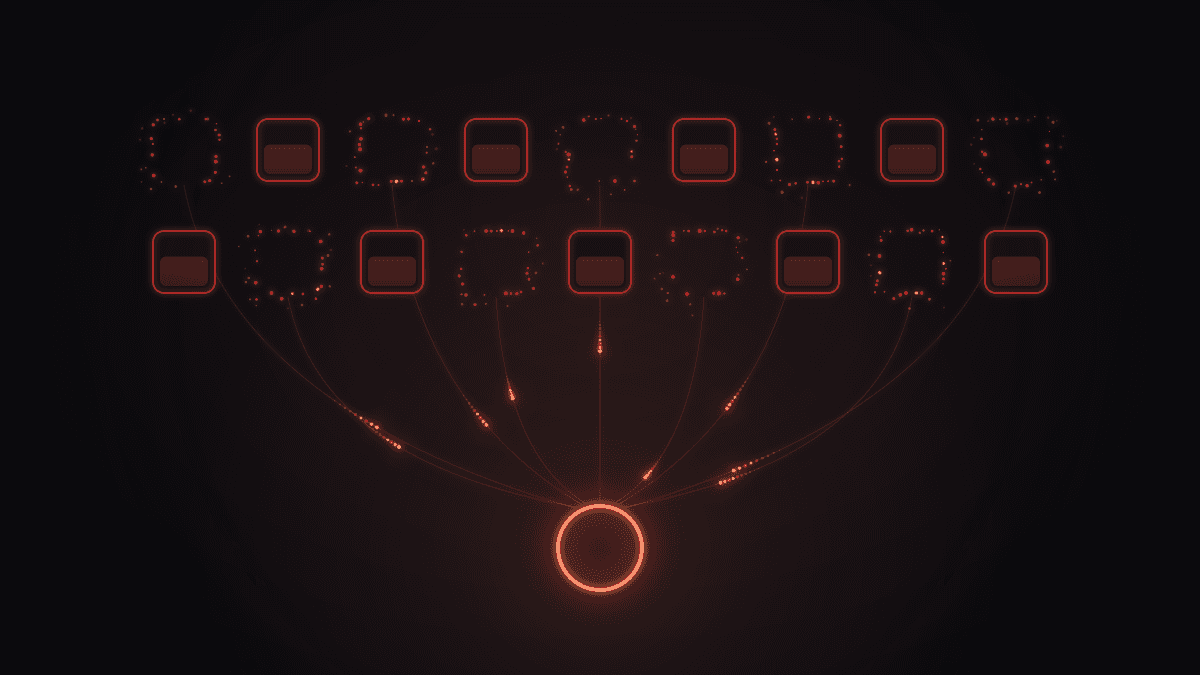
Steps 7 to 9: close the books
7. Retire single-use wallets and archive the keys
A swept wallet with no token accounts left has done its job. Keep the keys you still need in an encrypted file stored offline, and delete working copies from the scripts and spreadsheets they passed through. The burner wallet strategy for traders and the launcher's wallet stack playbook cover building the next set.
8. Publish the team's wallets and their share
Wallet addresses are public, anyone can read what a wallet could claim, and a funding transfer from your main wallet is visible on chain. So say it yourself: list the team and operational wallets, what each holds, and any plan to sell. The Holder Snapshot tool ranks holders and shows each share. A buyer reading the top of the holder list cannot tell an unlabeled team wallet from an anonymous whale, and reading token holder distribution shows why that difference matters.
9. Revoke mint and freeze authority, if that was the plan
The tool pages call revoking both a standard step before listing. If you kept either one for a reason, check whether it still holds. Revoke Mint Authority fixes the supply for good, and Revoke Freeze Authority means no wallet can lock a holder's account again. Neither can be undone, which is why this step comes last.
On a Token-2022 mint with a transfer fee, the withdraw authority for withheld tax is a separate key that neither tool touches. If it is ever set to null, withheld tax can never be withdrawn, one more reason step 3 comes first. Revoking mint, freeze and update authority covers each one.
What not to do
- Leave dust scattered. Ten wallets each holding a little SOL and a few empty accounts are ten sets of keys that still matter. Finish steps 5 and 6 on every one.
- Reuse the same wallet set for the next project. Anyone can see which wallets bought both launches, and fresh wallets do not hide that, since funding transfers are public too. Fresh wallets give you separate books and fewer keys that have been handled many times.
- Store keys in chat or cloud notes. A private key in a saved Telegram message or a synced notes app is a copy you do not control.
No support agent, buyer or website needs your seed phrase. If you import wallets into Claim Center, do it on j.tools itself: the tool page says imported keys stay in that browser tab's memory and are forgotten on reload.
Which tool does which step
The tools behind each step after launching a token:
| Step | What moves | Tool |
|---|---|---|
| 1. Creator fees | Launchpad vault to creator wallet | Creator Fee Claim |
| 2. LP fees | Position to your token accounts | LP Fee Claim |
| 3. Transfer tax | Holder accounts to your treasury | Token-2022 Tax Collector |
| 4. Unwrap | wSOL account to native SOL | WSOL Wrapper |
| 5. Close accounts | Rent deposits to a wallet you choose | Close Account |
| 6. Sweep | Many wallets to one | Batch Collector |
| 7. Retire wallets | Keys to an offline archive | None, by hand |
| 8. Disclose | Wallet list and share to a public post | Holder Snapshot |
| 9. Revoke | Mint and freeze authority to null | Revoke Mint, Revoke Freeze |
Frequently asked questions
Does the order of steps 1 to 3 matter?
Not among themselves. They are separate claims, and Claim Center can take all three in one run. They just need to finish before you unwrap, close and sweep.
Why won't an empty Token-2022 account close?
It still carries withheld transfer fees, and the program rejects the close until they are withdrawn or harvested to the mint. Anyone can harvest, so a holder can clear their own account.
Do Raydium standard or PumpSwap pools have fees to collect?
No. Both are constant-product pools that fold fees into the reserves, so you get them back when you remove liquidity.
Is the checklist after launching a token a one-time job?
Partly. Creator vaults refill while trading goes on and in-range positions keep earning, so steps 1 to 3 are worth repeating. Steps 7 to 9 happen once.
Is this financial or tax advice?
No. It describes how the programs and tools behave; how claimed fees are taxed is a question for a qualified professional.
Claim Center: one place to see what is waiting
Claim Center scans your wallets for creator fees, LP fees on concentrated positions, Token-2022 tax and rent locked in empty accounts, and shows what is ready and what is dust. One press claims the ready tax, creator and LP positions; the rent button opens Close Account.
The scan sends only public addresses, and every claim is signed by the wallet that owns it. Open it first after launching a token, and again before you fund the next one.